Razzi's guide to Raspberry Pi OS
Raspberry Pi OS is based on debian.
Using it is a little different than other OSes because of the architecture (aarch64) and its defaults.
check your os version
Since raspberry pi hardware is supported for a few years, chances are the operating system is a bit out of date by the time you boot it up.
Like debian, raspberry pi os uses apt. However it will only install updates for the corresponding version of the operating system; if you want to install a package that’s available only on debian 13, you’ll need to install debian 13.
Like debian, you can check your os version with cat /etc/issue:
$ cat /etc/issue
Raspbian GNU/Linux 13 \n \n
updating firmware
sudo rpi-update
sudo reboot
configuring settings
Unlike desktop debian, there’s no graphical settings app. You can configure settings using raspi-config:
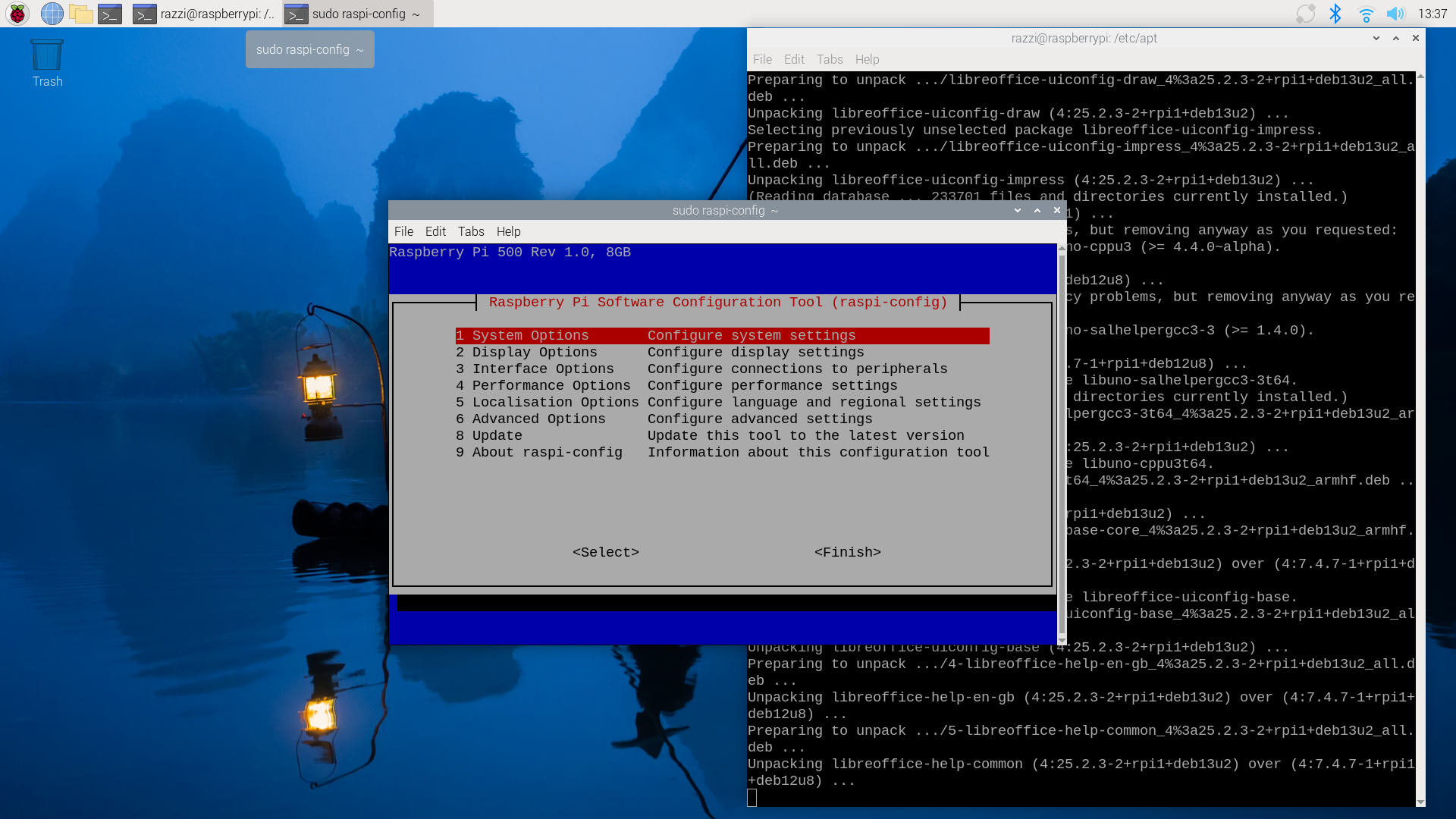
Use the arrow keys to navigate, then hit tab to get to the buttons at the bottom. Confirm with enter.
managing user accounts
Managing users is much like other operating systems, however you do it all yourself from the command line.
$ sudo adduser newuser
New password:
[...]

# You'll probably want to allow your new user to sudo
$ sudo adduser newuser sudo
Then you can log out using the power button and clicking logout, and select the new user from the login window.