Razzi's guide to javascript
Javascript is a language that runs in web browsers.
the annoying alert
One thing you can do with javascript is to make an alert.
I’ll connect it to a button so that it doesn’t happen on page load (very annoying!! But browsers have worked around this by allowing you to disable alert popups if they repeat)
Here’s the html code that made this possible:
<button id="popup-button">Click here for a popup</button>

<script>
function clickButtonHandler() {
  alert('Clicked the button')
}

document.getElementById('popup-button').onclick = clickButtonHandler
</script>
The javascript is the part that is in the <script> tag.
Javascript is typically embedded in html as above or included as an external resource:
page.html
<script type="text/javascript" src="script.js"></script>
script.js
function clickButtonHandler() {
  alert('Clicked the button')
}

document.getElementById('popup-button').onclick = clickButtonHandler
This approach is nice since you don’t have to indent all your javascript code and your editor doesn’t need to support nested programming languages.
the subtle console.log
Since it’s annoying to have alerts cover the content of the page and prevent interactivity, a more standard way of getting information to the developer (yourself) is to use console.log.
console.log('Hi from the console.')
In fact on this very page I have logged this message to the console. You can view the message by opening your developer tools. Every browser does this a bit differently but in firefox it’s enabled by default and available in the tools menu. Once you open the developer tools, switch over to the tab named “Console”.
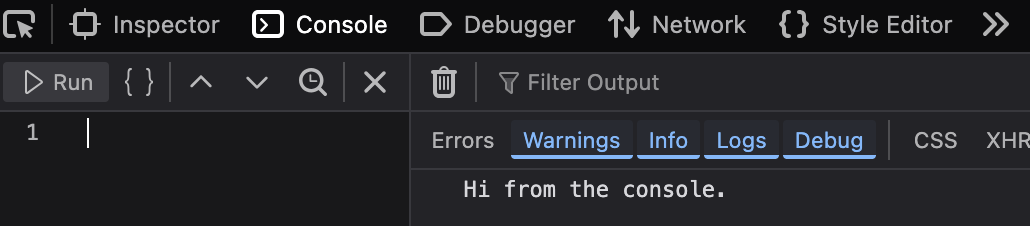
Once you get the developer tools open and see that message, you can interact with the console by clicking the following button:
Every time you click it, it logs the date and time to the console.
Here’s the whole code for this part:
<button id="console-log">Click here to log to console</button>

<script>
document.getElementById('console-log').onclick = function() {
  console.log('Clicked on ' + Date())
}
</script>
I call this the subtle console.log since you wouldn’t know anything has happened unless you look in the console.
If the page has an error it will show in the console.
the helpful debugger
If you have the developer tools open, execution of javascript will stop with the debugger keyword. For example:
const button = document.getElementById('debugger-button')

button.onclick = function() {
  const value = 0 / 0
  debugger
  if (value > 3) {
    console.log('Value is greater than 3')
  }
}
Open your developer tools and click this button to test it out:
You can enter javascript expressions in your console to evaluate them. Here you can look at the variable value by typing value in the console and hitting enter. You can do more complex stuff this way, like calling your own functions.
source code
Confusingly, this language has been standardized as ECMAScript.
Read the ecmascript language specification here: https://ecma-international.org/publications-and-standards/standards/ecma-262/